
Delete My Mobile Account
Follow the steps below to permanently delete your Parkway Mobile Banking account. This action cannot be undone.
Log into the Mobile Application
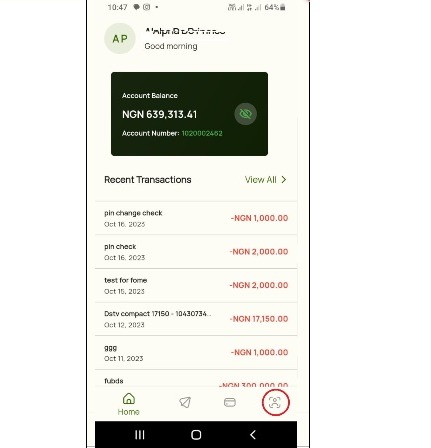
When you Log into the Parkway Mobile Application, select the profile icon which is on the extreme right just below your transactions. (As shown on the image here)
Tap on this Icon to take you to the profile tab.
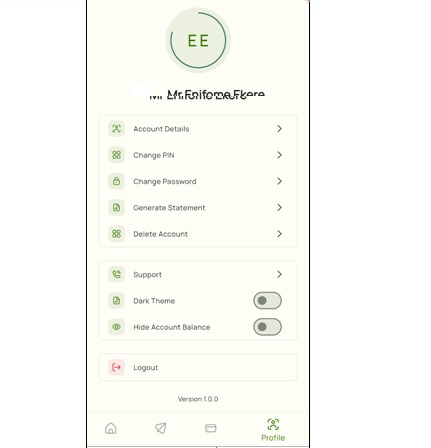
Select The Delete Account Button
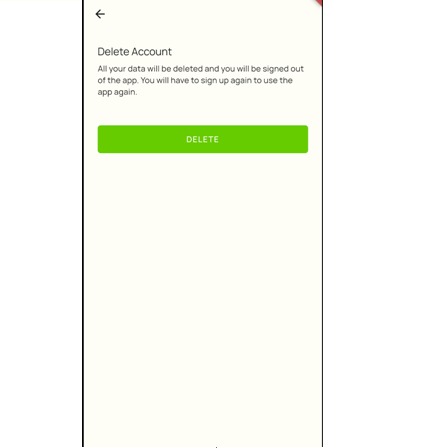
Select The Delete Button Again
From Step 2, the mobile app leads you to a warning, read the warning and select the delete button below.
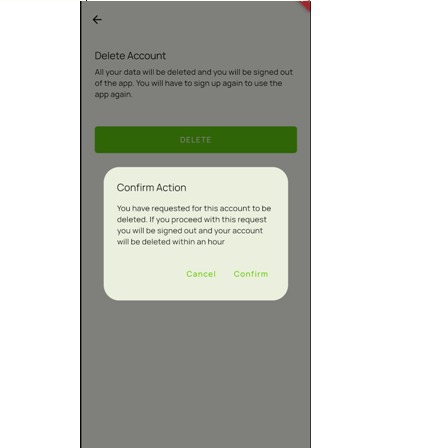
Confirm The Delete Action
A confirm action dialogue box pops up.
Select "Confirm" to continue.
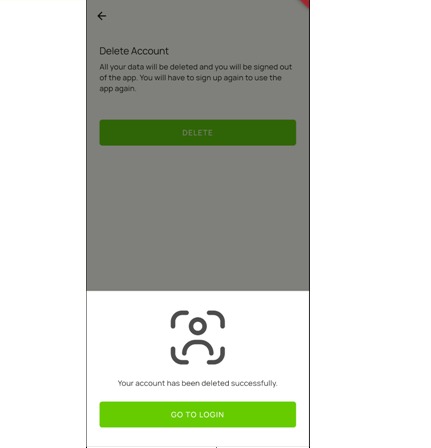
Delete Complete
A dialogue box comes up to inform you that the delete process is complete.
Important Notice
Deleting your account is permanent and cannot be reversed. All your data, transaction history, and account information will be permanently removed. Please ensure you have saved any important information before proceeding.